Size first, settings second
You provide the limit. NeatClick handles bitrate and resolution planning instead of asking you to learn encoding controls.
 NeatClick
Target-size video compression
Choose the maximum size you need. NeatClick plans the encode, creates an MP4, checks the result, and retries within sensible limits when necessary.
Version 1.2 · Requires macOS 14 or later. · No subscription · Files stay on your Mac
How it works
Choose a supported video in Finder. You do not need to open an editor or upload it.
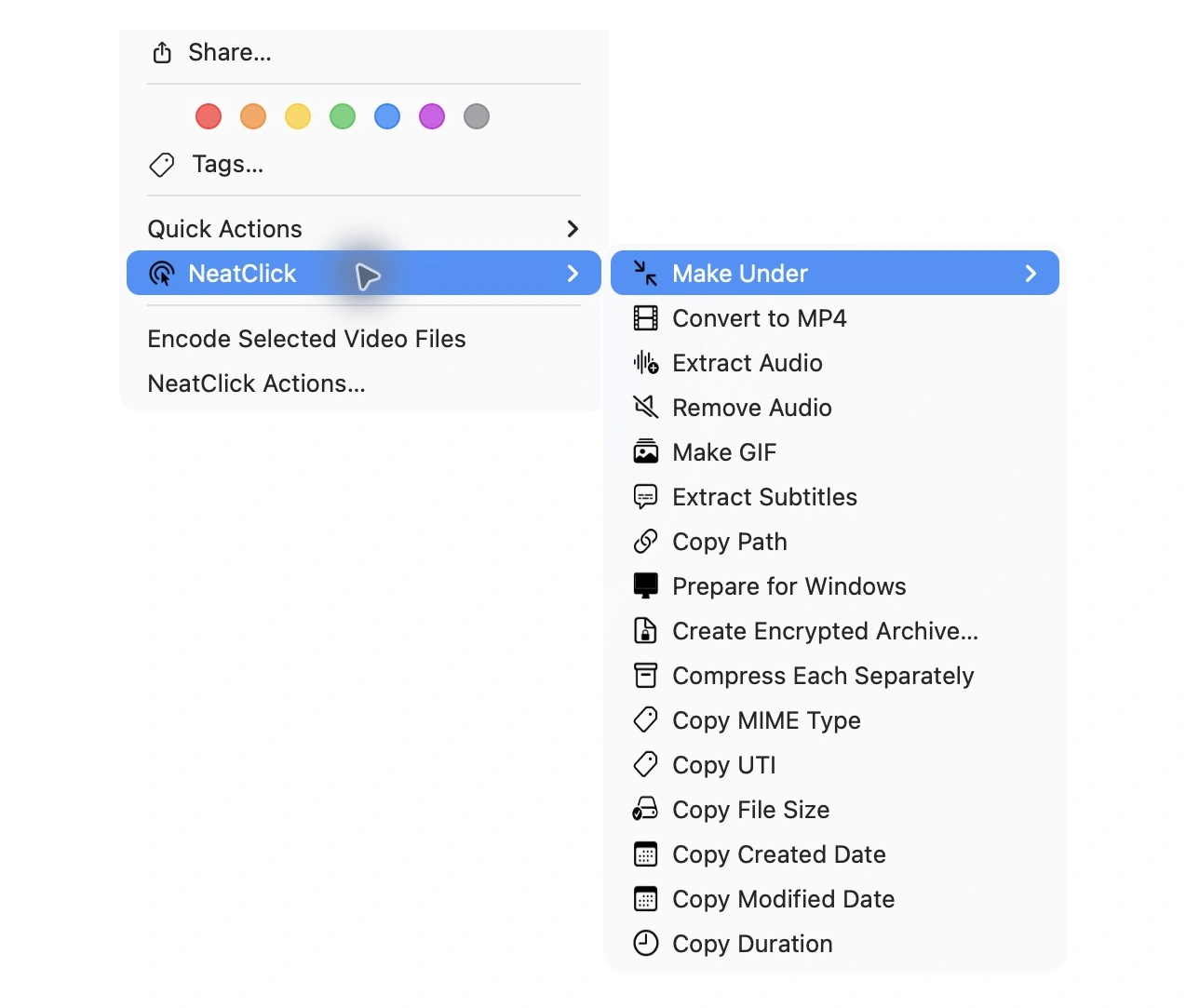
Right-click, open NeatClick, and choose 10, 25, 50, 100 MB, or enter a custom value.
The result is saved as a new file. NeatClick reports the before and after sizes.
Why NeatClick
You provide the limit. NeatClick handles bitrate and resolution planning instead of asking you to learn encoding controls.
Encoding happens on your Mac. Video contents, filenames, paths, and metadata are not uploaded.
Useful when a portal, email system, or client gives you a hard attachment limit.
NeatClick is a $5.99 one-time purchase for two Macs, with one year of updates included.
What is included
Questions
Choose Make Under → 25 MB. NeatClick aims below the limit rather than at an exact byte count, then validates the output before saving it.
No. Video inspection and encoding run locally on your Mac.
Target-size video compression creates an MP4 for broad compatibility.
Keep working

More than 80 local file actions. One purchase for two Macs.