
Short answer
In Preview, choose File → Export and select Quartz Filter → Reduce File Size. To aim for a specific limit, such as 2 MB or 5 MB, select the PDF in Finder and choose NeatClick → Make Under.
Option 1: compress a copy in Preview
- 1
Find the size limit
Check the maximum size on the upload form, or decide how small you want the attachment to be.
- 2
Export a smaller copy
Open the PDF in Preview. Choose File → Export, keep PDF as the format, and select Quartz Filter → Reduce File Size. Enter a different filename and save the copy.
- 3
Take a look at the result
Press Command-I in Finder to see the new size. Open the PDF and zoom in on small print. If it’s too blurry, go back to the original and try another method.
Option 2: use a specific limit in NeatClick
Make Under checks the finished size for you. It works with unlocked PDFs of up to 500 pages, all on your Mac.
- Select the original PDF in Finder. Right-click → NeatClick → Make Under.
- Choose 1, 2, 5, or 10 MB, or Custom Value…. For a portal rejecting files at 5 MB, a custom 4.8 MB target gives a small margin.
- Open the new PDF and check the small print. If the original already fits, NeatClick leaves it as it is.
Example: a three-page checklist below 2 MB
Our sample packing checklist went from 5.82 MB to 0.56 MB with Make Under → 2 MB. It kept all three pages in order, and the checklist text was still readable.
We built this sample from uncompressed page images, which have much more room to shrink than an already-compressed scan. The previews show the first page; both full PDFs are below.
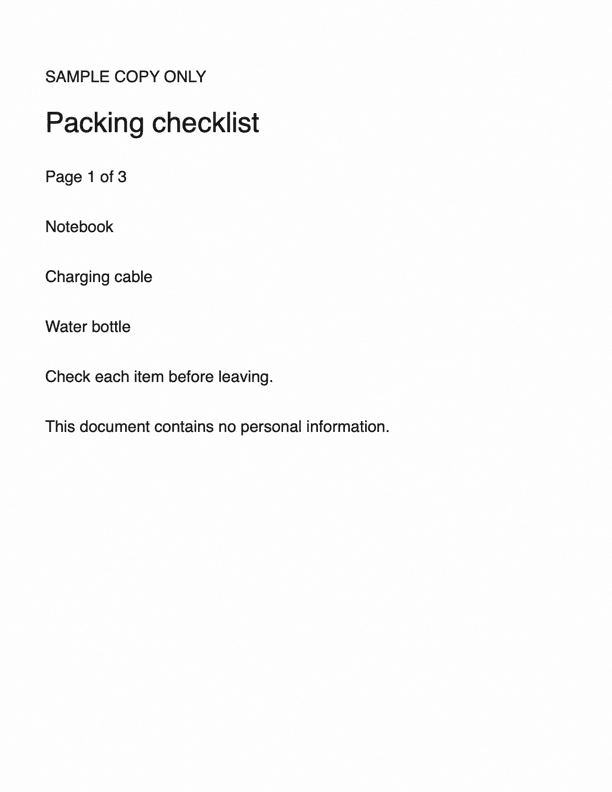
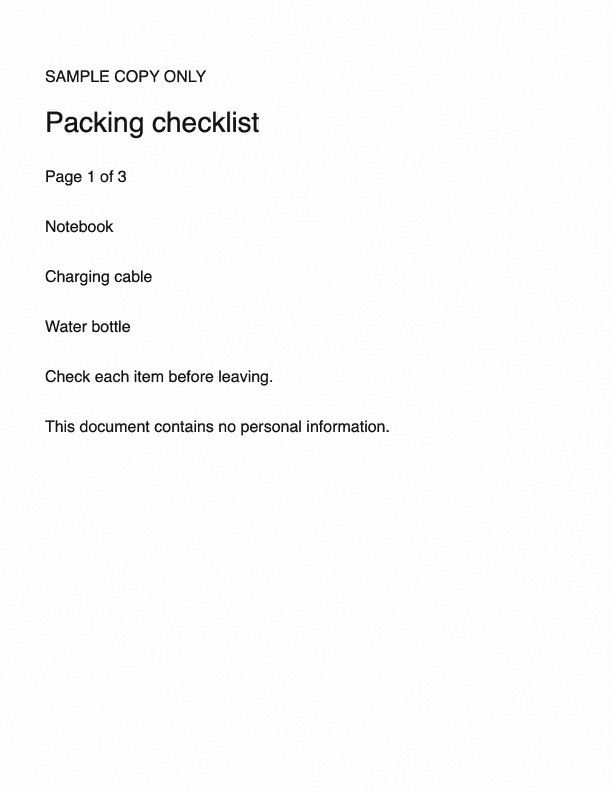
| What we checked | Original | After Make Under |
|---|---|---|
| File size | 5,817,989 bytes | 564,805 bytes |
| Pages | 3 | 3 |
| Page size | US Letter | US Letter |
| Searchable | No | No |
| Original file | Kept | Unchanged |
Processed October 2, 2026 with NeatClick’s v1.2 development engine on macOS 26.3.1.
Why some PDFs barely shrink
Scanned pages often have large images to compress. A PDF made mostly of text, or a scan that’s already compressed, may have little left to shrink.
If NeatClick can’t reach your limit, try a larger target or remove pages you don’t need. Start each attempt from the original.
Before you send it
- Check the page count, small print, and any filled-in forms.
- Try searching for a word if the original was searchable. For an image-only scan, use Make Searchable to add search.
- Keep the signed original if your PDF has a digital signature. Editing it can invalidate the signature.
Frequently asked questions
Why won’t my PDF fit under 1 MB?
A long scan may need a larger limit, while an already-compressed PDF may have little room left to shrink. Try a higher target or fewer pages.
Will the PDF remain searchable?
NeatClick keeps existing text where possible. Open the copy in Preview and search for a word to check.